
Table of Contents
Imagine handing your phone to someone so they can make a call or look at a photo. You are comfortable sharing the phone for a moment, but you may not want that person opening your personal apps, checking private notifications or browsing through accounts you use for sensitive activities.
Deleting apps before lending your phone is obviously impractical. App-locking tools can help, but they are not the only option.
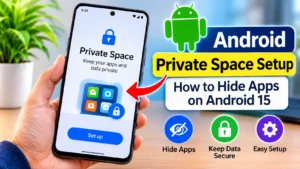
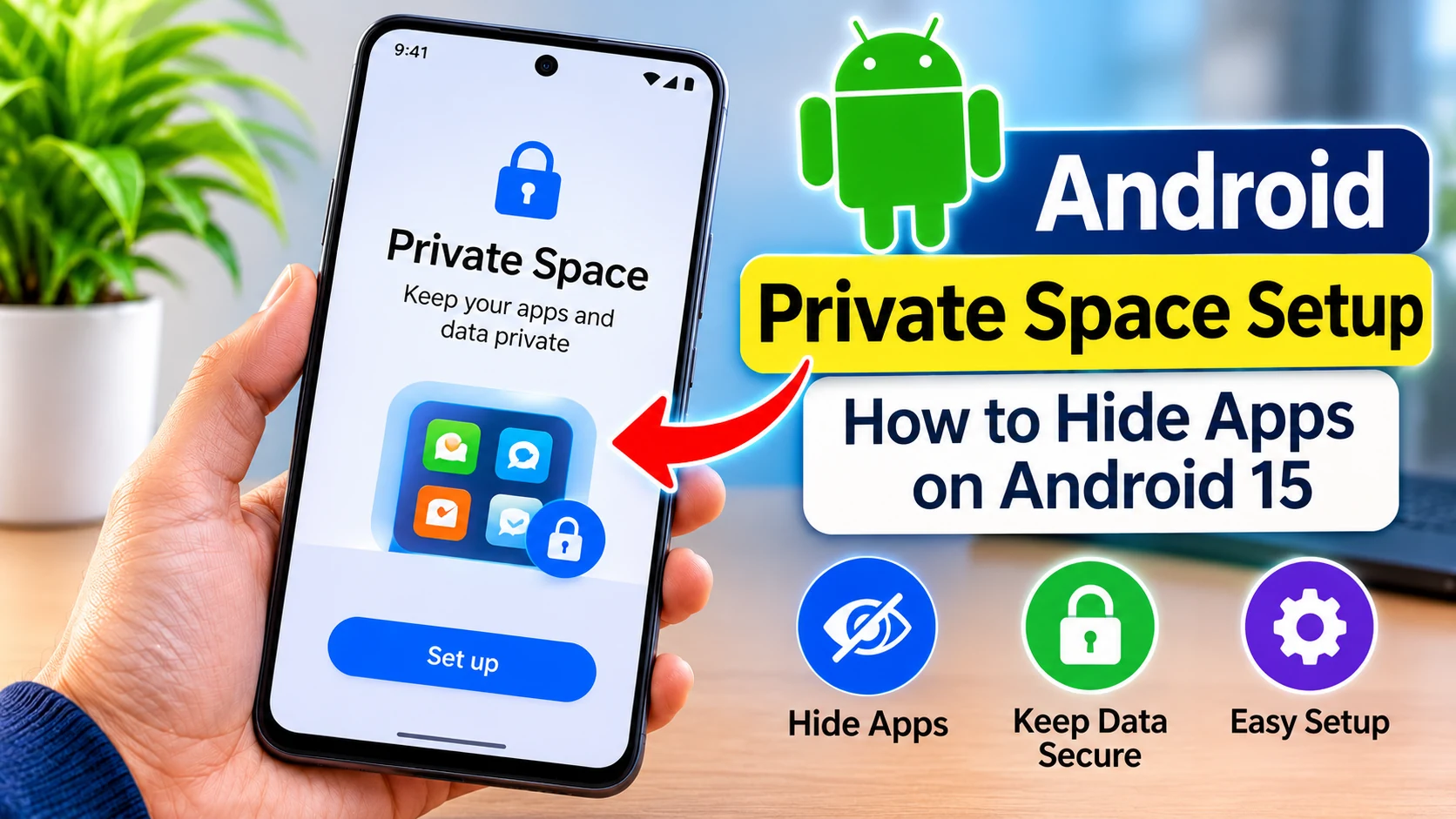
Android 15 introduced a feature called Private Space that gives selected apps a separate environment on a compatible phone. With the right settings, you can keep those apps out of your regular app drawer while the private area is locked.
This guide explains Android Private Space setup through practical examples. You will learn how to create the space, install apps in it, hide its entry from the app drawer and avoid mistakes that could cause data loss.
Is Private Space the Right Solution for You?
Before changing your phone settings, consider what you actually want to protect.
Use Private Space to keep selected apps in a distinct area of your phone, making them inaccessible from the regular app drawer whenever that area is locked.
For example, you might want to:
- Keep a second messaging app separate from your everyday messaging account.
- Install a personal email app without mixing it with your regular app environment.
- Separate certain social media accounts from the apps you use publicly.
- Keep selected apps inaccessible during casual use of your unlocked phone.
It is not necessarily the best option for every situation.
If you only want to stop someone from opening one application, your phone manufacturer’s built-in App Lock may be easier. If you need an app to send notifications continuously, Private Space may be inconvenient because locking it stops its apps.
The important difference is that Private Space creates a separate Android profile rather than simply putting a password on an existing app.
What Actually Happens Inside Private Space?
Unlike a regular folder, Private Space provides a separate, protected environment for selected applications.
Suppose you already have a messaging application installed on your phone. You install the same application inside Private Space. The original application in your regular profile remains separate.
This distinction matters in everyday use.
For example, if your phone already has a messaging app, you can add another copy of that app to Private Space and use it separately. You now have two installations, and you may need to sign in separately to the second one.
Your existing chats, downloads and login session are not automatically transferred into the new installation.
Locking Private Space puts its apps into an inactive state until you unlock the area again. Its applications cannot carry on their usual background activities, and their notifications are not displayed. Apps outside that environment continue to work normally.
This separation is the feature’s main advantage, but it is also the reason some apps may not suit it.
Check These Things Before Creating a Private Space
Private Space is not available in every Android configuration.
Google lists Android 15 or later as a requirement. The device must also meet certain account and user-profile conditions.
Check the following before starting:
- Your phone is running Android 15 or a later compatible version.
- You are using the device’s main user profile.
- The phone is not managed by an organisation that has disabled the feature.
- There is no supervised account on the main space that prevents its use.
- Your manufacturer has not disabled Private Space.
A phone can run Android 15 and still lack the feature because of manufacturer or device restrictions.
Check your Android version: Open Settings, select About phone and look for Android version. The names of these settings can vary between phone brands.
If your phone meets the requirements but the feature is missing, search for Private Space in Settings. If it still does not appear, check with your manufacturer’s support team.
Android Private Space Setup: Create Your Private Area
You do not need to download a separate Private Space application. On a supported phone, the setup option is included in Android settings.
Follow this process:
- Open Settings on your phone.
- Go to Security & privacy.
- Find the Privacy section.
- Select Private space.
- Verify your identity using your existing phone lock.
- Tap Set up and follow the instructions.
- Review the Google Account option shown during setup.
- Choose the lock method for the private area.
- Complete the setup.
Some screens may look different depending on your Android version and manufacturer.
Should You Create a Separate Lock?
You can generally choose between using your existing device lock and creating a different lock for Private Space.
A separate PIN, password or pattern can provide an additional distinction between the main phone environment and the private area.
For instance, if you regularly let a family member unlock your phone, using the same credential for both areas may not provide the separation you expect.
Choose a credential you can remember. Losing access to the private area can become particularly inconvenient if you have not planned for account recovery and data backups.
Should You Use Another Google Account?
Android gives you the option to use a Google Account for Private Space. Google recommends considering a separate account because it can reduce the chance of private account information, files and notifications appearing outside the private environment.
This is worth considering if you intend to use the space for personal accounts.
However, a second account is not a replacement for a strong screen lock. It is an additional way to keep account activity separated.
Add Applications Without Mixing Your Existing Data
Once setup is complete, the next step is installing the applications you want to keep in the private environment.
There are two ways to do this.
Option 1: Install From the Private Space Section
- Open the app drawer.
- Scroll to Private Space.
- Unlock it.
- Select the + Install option.
- Choose an available app store or installer.
- Find the application you want.
- Complete the installation and sign in.
Option 2: Install a Separate Copy From the App Drawer
Some supported devices provide a shortcut for installing another copy of an application.
- Find the application in the regular app drawer.
- Touch and hold its icon.
- Check whether Install app in private space appears.
- Select the option if it is available.
- Follow the installer instructions.
This shortcut may not be available for every application or device.
What Happens to the Original Application?
Nothing happens to the original installation simply because you install another copy.
For example, if you install a browser in Private Space, the browser in your main profile remains installed. Its bookmarks, history and account information are not automatically transferred to the private copy.
You must configure the second installation separately.
Do not uninstall your original app until you have checked that the new installation works and that any information you need is available.
Hide the Private Space Entry From the App Drawer
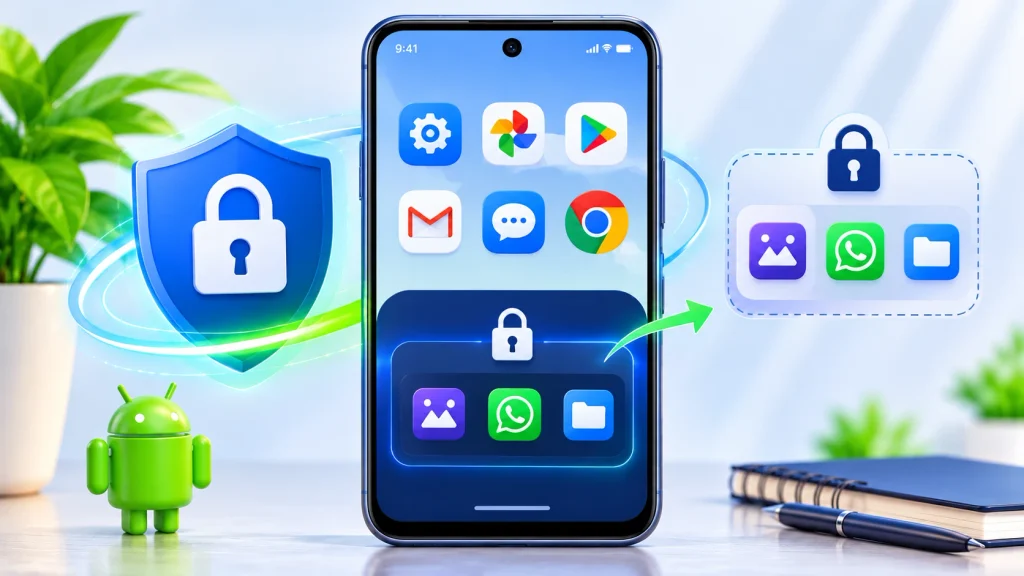
You may prefer that the Private Space section itself does not remain visible at the bottom of your app list.
Android provides a setting for this.
- Open the app drawer.
- Find Private Space.
- Unlock the section.
- Open its settings.
- Look under the Hide section.
- Enable Hide private space when it’s locked.
- Lock Private Space.
The setting takes effect the next time you lock the private area. When you unlock it again, the section becomes visible.
This is useful when you do not want the private section appearing in your regular app list.
However, do not confuse hiding the launcher entry with making the feature impossible to discover. Google notes that certain applications, device logs and people with computer access may still be able to detect its use.
What Changes When You Lock It?
Locking Private Space changes how its applications behave, not just how their icons look.
Here are some practical consequences:
Notifications: Applications inside the locked area cannot display their normal notifications.
Background activity: The private profile is stopped, so its applications cannot continue normal background tasks.
App search: Private applications are unavailable through the usual quick-search experience while the area is locked.
Recent applications: Private apps are hidden from the regular recent-apps view.
Sharing: The private environment is separated from normal sharing interfaces while locked.
This means you should think carefully before putting an application that needs continuous background access into Private Space.
For example, an app used for urgent alerts or continuous tracking may not work as expected when the private area remains locked.
Mistakes to Avoid When Using Private Space
A few misunderstandings can lead to lost information or unexpected app behaviour.
Expecting Existing App Data to Move Automatically
Installing a second copy does not bring over the original app’s local data. You may need to sign in again or restore information through the app’s own backup service.
Using It for Apps That Must Always Run
A locked private profile is stopped. Applications that depend on background operation may not perform their usual functions until you unlock the space.
Treating It as an Invisible Vault
Hiding the Private Space entry improves privacy in normal phone use. It does not guarantee that advanced tools or every system interface will be unable to detect it.
Deleting the Space Without Checking Backups
This is the mistake worth taking most seriously.
Google states that deleting Private Space removes its applications and their local data. That on-device data is not restored through a normal device backup.
If an application synchronises information to its own cloud service, you may be able to retrieve that information by signing in again. This does not mean every locally stored file or setting can be recovered.
Check your backups before deleting the private environment.
Private Space or App Lock: Which Should You Choose?
Both features can improve privacy, but they solve different problems.
| Your requirement | More suitable option |
|---|---|
| Stop someone opening an existing app | App Lock |
| Keep a separate installation of an app | Private Space |
| Separate app data and accounts | Private Space |
| Keep an app working in the background | Regular app installation |
| Hide selected apps when the private area is locked | Private Space |
App Lock availability and behaviour depend on your phone manufacturer. Private Space is an Android feature available on supported Android 15 and later devices.
Choose the simpler solution if you only need basic access protection. Use Private Space when the separate app environment is important.
Read more: Google Dreambeans App in India: Features, Download, Languages and Privacy Explained
Frequently Asked Questions
Can I set up Private Space on Android 14?
No. Google’s Private Space feature requires Android 15 or a later compatible version.
Do I need to download Private Space from the Play Store?
No. It is a built-in feature on supported devices.
Can I move an existing application into Private Space?
You can install a separate copy, but the original installation and its local data are not transferred automatically.
Can I hide the Private Space section?
Yes. Enable Hide private space when it’s locked in the private area’s settings. It will disappear from the app drawer when you lock it.
Will private applications receive notifications while locked?
No. Locking Private Space stops its apps and their normal background activities, including notifications.
Is Private Space completely invisible?
No. Hiding its entry reduces visibility in everyday use, but Google identifies technical ways its existence may still be detected.
What happens if I forget my Private Space lock?
Google provides a reset or deletion route through system settings. However, deleting the space removes its apps and local data. Consider the data-loss consequences before using that option.
Final Thoughts
Private Space is most useful when you want more than a password on an application. It gives selected apps their own environment, keeps their data separate from regular installations and lets you hide the private area when it is locked.
The trade-off is that apps inside it stop working normally while locked, and their data is not automatically copied from existing installations.
If your phone supports the feature, start with one non-essential application. Test its login, notifications and data requirements before adding anything important.
Official reference: Google Android Help – Hide sensitive apps with Private Space
Read more: Image Resizer: 6 Free Ways to Resize Photos (2026)