
Table of Contents
The most reliable Word to PDF converter is the one already on your device: Microsoft Word’s Save As > PDF, or Google Docs’ File > Download > PDF Document. Use an online converter such as Adobe Acrobat’s or iLovePDF only when you have neither, because they upload your file to a third-party server, so skip them for sensitive documents unless you have read the provider’s privacy policy.
Quick takeaway
- Best default: Save As > PDF in Microsoft Word, or File > Download > PDF Document in Google Docs.
- No Word or Docs: use LibreOffice (free, offline) or an online converter such as Adobe Acrobat’s Word to PDF tool.
- Avoid “Print to PDF” when accessibility matters: it produces an untagged PDF that screen readers handle poorly.
- Confidential files: keep conversion offline. Online converters upload your file to a server.
- Before you send: open the PDF and check page breaks, fonts, images and links.
Which Word to PDF method should you use?
Use the tool that already holds your file. Each extra upload or re-save adds a chance of layout changes, and online tools add a privacy trade-off.
| Method | Needs internet | Cost | Best for | Watch out for |
|---|---|---|---|---|
| Microsoft Word (Save As > PDF) | No | Requires Word | Resumes, reports, formal documents | Print to PDF gives an untagged file |
| Google Docs (File > Download > PDF) | Yes, by default | Free with a Google account | Files already in Google Drive | Extra page breaks can add a blank last page |
| LibreOffice Writer (File > Export As PDF) | No | Free, open source | PC without Word; PDF/A output | Toolbar quick-export skips the options dialog |
| Adobe Acrobat online Word to PDF | Yes | Free to try, no sign-up; a free account for more | DOC, DOCX, RTF and TXT files | File is uploaded; sign-in may be needed to download |
| iLovePDF Word to PDF | Yes | Free with limits | Quick one-off conversions | Free plan has file size and usage limits |
How do you convert Word to PDF in Microsoft Word?
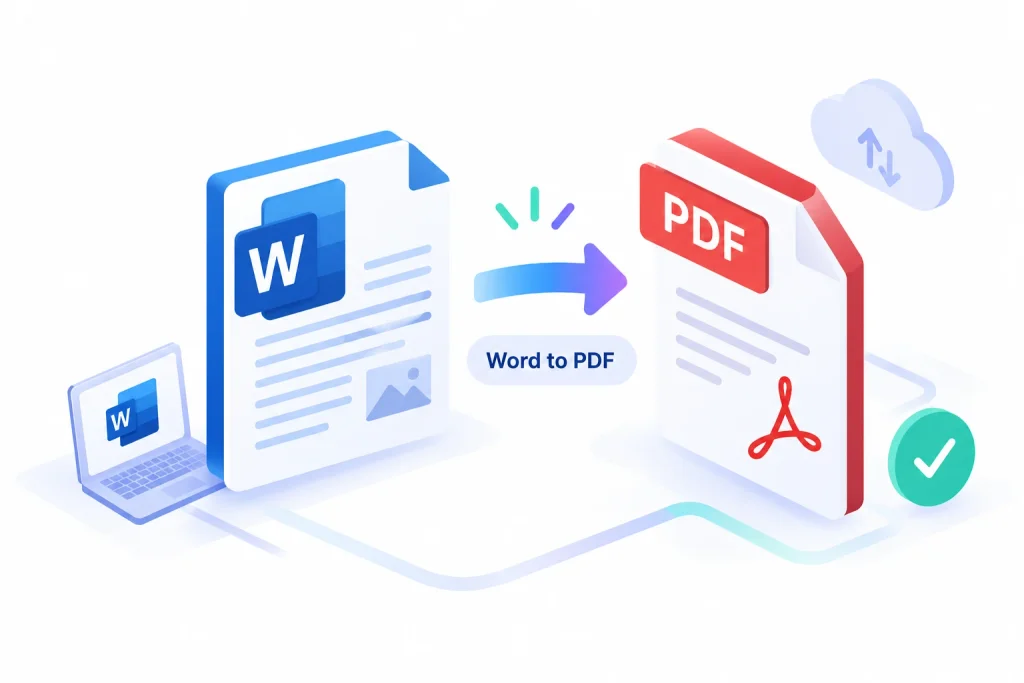
Use File > Save As and choose PDF as the file type. This keeps your headings, lists and links as real structure inside the PDF, which a screen reader or a PDF bookmark panel can use.
On Windows
- In Word, go to the File menu and choose Save As (Save a Copy in newer versions).
- Choose a location, then pick PDF (*.pdf) from the Save as type list.
- Click More options, then Options.
- Tick Document structure tags for accessibility. Optionally tick Create bookmarks using headings.
- Click OK, then Save.
On Mac
- Click File > Save As.
- Choose PDF as the file format.
- Select Best for electronic distribution and accessibility, then click Export.
The Mac option is described by university IT guides as using a Microsoft online service. Choose it only if you are comfortable with that for the document in question.
Why not Print to PDF? University accessibility guides state that the Print route produces a PDF without accessibility tags. For a resume or form that someone may search, copy from or read with assistive technology, Save As is the safer route.
Read more: Best Instagram Video Downloader Tools in 2026 (Free & HD)
How do you convert a Word file to PDF with Google Docs?
Upload the .docx to Google Drive, open it in Google Docs, then click File > Download > PDF Document (.pdf). This works on any laptop or phone with a Google account and needs no Word licence.
On a laptop
- Put the .docx in your Google Drive, then right-click it and open it with Google Docs.
- From the File menu, pick Download, then PDF Document (.pdf).
- Open the downloaded PDF and check the layout.
On Android or iPhone
- Open the file in the Google Docs app.
- Use the app’s Save as option and choose PDF Document (.pdf). Menu names can differ slightly between app versions, so look for the same wording.
Known problems and fixes
- Blank last page: extra empty lines or page breaks at the end of the document. Delete them and export again.
- Table of contents links not clickable: internal links may not work in every PDF viewer.
- Font changes: fonts can look different in the PDF. Compare it with the original before sending.
Are online Word to PDF converters safe and free?
Online converters are free for basic use, but they upload your file to the provider’s server. Use them for non-sensitive files such as a public brochure, and use Word, Google Docs or LibreOffice for anything confidential.
Adobe Acrobat online Word to PDF. Adobe’s tool converts DOC, DOCX, RTF and TXT files to PDF in a browser on any operating system. Adobe’s India page offers the converter without sign-up for a trial, and says a free Acrobat.com account gives unlimited use of its PDF tools in India.
iLovePDF. iLovePDF converts Word files to PDF in the browser. User reviews on Capterra and G2 repeatedly mention file size limits and daily usage limits in the free version. Check the limits shown on the site before relying on it for a large file.
How to use an online converter safely
- Remove personal identifiers you do not need, such as ID numbers, before uploading.
- Read the provider’s privacy policy for how long files are stored.
- Save the converted file to your device, then scroll through every page to confirm nothing shifted.
Can you convert Word to PDF for free without Microsoft Word?
Yes. LibreOffice Writer is free, open-source and opens .docx files. Open the file, click File > Export As PDF, review the options, then click Export.
- Use the dialog, not the shortcut. Export Directly as PDF saves with default options. The File menu route lets you choose settings.
- PDF/A for archiving. The PDF options dialog offers PDF/A versions for long-term storage. Word also offers a PDF/A-compatible option in its PDF Options window.
- Newer versions. LibreOffice 25.8 added PDF 2.0 export with AES-256 encryption and PDF/A-4 support, according to AlternativeTo’s report on the release.
Layout can shift when a Word document uses fonts or features LibreOffice does not match exactly. Open the PDF and compare it with the original.
What are the steps to convert a Word file to PDF before uploading it?
Finish and proofread the .docx first, convert with Save As or Download as PDF, then check the PDF against the receiving portal’s rules. Always read the portal’s own instructions, because size limits and accepted formats differ between exam, job, bank and government sites.
- Proofread the Word file and turn on Show Formatting Marks to find stray page breaks.
- Use widely available fonts if the file will pass through Google Docs or LibreOffice, where layout can change.
- Convert with Save As > PDF (Word), Download > PDF Document (Google Docs) or Export As PDF (LibreOffice).
- Open the PDF and scroll through every page. Check images, tables, links and the last page.
- Check the file size against the portal limit. [ADD REAL EXAMPLE: portal name and its stated maximum file size]
- Give the file a clear name, such as Firstname-Lastname-Resume.pdf.
- Keep the original .docx so you can edit and export again.
What are the common mistakes when converting Word to PDF?
The most common mistake is not opening the PDF after conversion. Every other problem below is easy to fix if you catch it before sending.
- Skipping the check. A blank last page, a moved table or a missing image only shows in the PDF.
- Using Print to PDF for accessible files. Accessibility guides from several universities say this route does not add tags. Use Save As with the tags option instead.
- Uploading sensitive files to free online tools. Online converters process your file on their servers. Use an offline method for IDs, contracts and financial records.
- Ignoring the file size limit. Free online tools and many portals enforce limits. Check both before you convert.
- Deleting the original .docx. A PDF is hard to edit. Keep the Word file.
- Using a quick-export button without checking its settings. Kent State’s accessibility guidance reports that some Acrobat ribbon quick-save buttons in Word produced incorrectly tagged or untagged PDFs. Use Save As > Options to be sure.
FAQ
What is the best free Word to PDF converter? The best free option is the one on your device. Microsoft Word’s Save As, Google Docs’ Download as PDF and LibreOffice’s Export As PDF all convert without uploading your file to a third-party converter. Use an online tool only when none of these is available.
How do I convert Word to PDF on my phone? Open the file in the Google Docs app and use its Save as option to choose PDF Document (.pdf). You can also use a browser-based tool such as Adobe Acrobat’s online converter, which works on any phone, tablet or PC with a browser.
How do I convert Word to PDF without losing formatting? Convert with the same app that created the file, usually Word. Then open the PDF and check page breaks, tables, images and fonts. Layout changes are most likely when a file moves between Word, Google Docs and LibreOffice.
Can I convert many Word files to PDF at once? Google Docs downloads one document at a time. Online tools may offer batch conversion, but free plans can limit file count and size, so check the limits on the tool’s page.
Is a converted PDF editable? Not easily. Edit the original .docx and export again. If you only have the PDF, Adobe offers an online PDF to Word converter, though scanned PDFs may need OCR, which some tools restrict to paid plans.
Why does my PDF have a blank last page? Extra empty lines or a page break at the end of the document usually cause it. Delete them in the Word or Google Docs file and export again.
Conclusion: what to do next
Convert with the app that holds your file, use Save As or Download rather than Print, and open the PDF before you send it. Do that once for your most-used document, note the result, and keep the .docx so you can export again after any edit.
Read more: YouTube Video Download: Safe Ways to Save Videos