
Table of Contents
The fastest free image resizer is the one already on your computer: Paint or Photos on Windows, Preview on a Mac. Enter the new width and height in pixels, keep the aspect ratio locked, and save a copy. Use an online resizer such as Adobe Express only when a built-in tool cannot reach the size you need, and avoid uploading photos of ID documents to online tools.
Quick takeaway
- Resizing changes pixel dimensions (for example 4000 x 3000 to 1200 x 900). Compressing changes file size in KB or MB.
- Resize first, then compress. Fewer pixels usually shrinks the file more than re-encoding does.
- Lock the aspect ratio (“Maintain aspect ratio” in Paint, “Scale proportionally” in Preview) so the photo is not stretched.
- Scale down, not up. Enlarging an image usually loses quality.
- Save a copy so you keep the original.
- Check the exact requirement of the form or site first: pixels, KB limit and format.
How do resizing, compressing and cropping differ for an image?
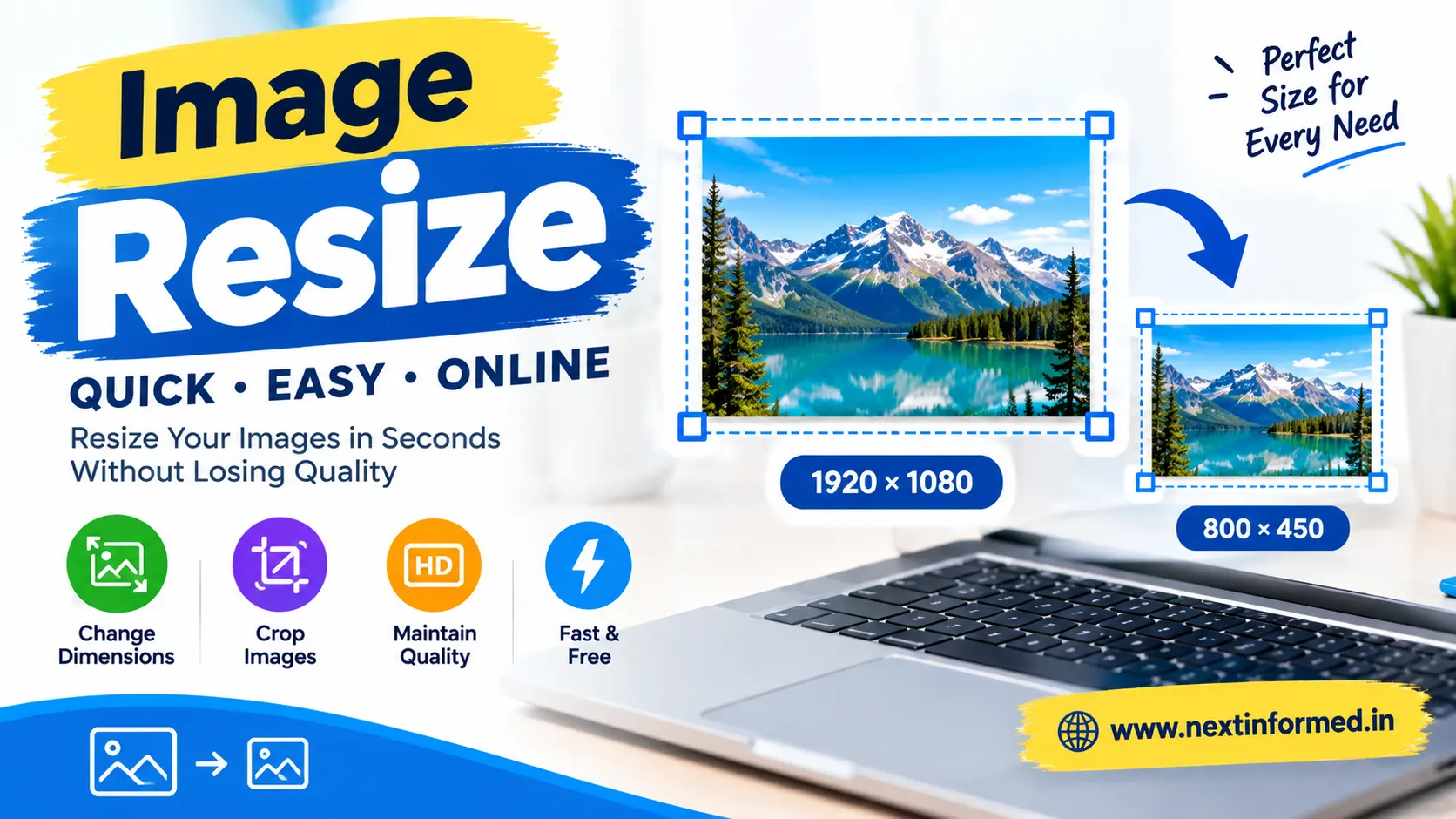
Resizing changes how many pixels an image has. Compressing changes how much storage the file needs. Cropping removes part of the picture. People say “image size” for both dimensions and file size, which is why forms and tools confuse them.
| Action | What changes | Unit | Typical use |
|---|---|---|---|
| Resize | Width and height | Pixels (px) | A form asks for a set width and height, or a website needs a smaller photo |
| Compress | Stored file data | KB or MB | A portal accepts files under a size limit |
| Crop | Which part of the picture is kept | Pixels | Remove background or fit a different shape |
A photo with fewer pixels holds less data, so scaling a large picture down typically shrinks the file by a big margin. Compression then trims more. Lossy formats such as JPEG discard some detail permanently, while lossless formats such as PNG keep every pixel.
Office Watch’s write-up on the Windows 11 Photos app also notes that Photos can now change both dimensions and image quality and show the new file size before you save.
Read more: Best Instagram Video Downloader Tools in 2026 (Free & HD)
Which image resizer should you use?
Use a built-in app when you know the target size, and an online tool when you need presets or a quick fix from any device. Built-in apps do not upload your photo anywhere.
| Tool | Where | Resize by | Batch | Best for |
|---|---|---|---|---|
| Paint | Windows | Percentage or pixels, aspect ratio on or off | No | Exact pixel sizes |
| Photos app | Windows 10 and 11 | Percentage or pixels; newer versions show the new file size and a JPG quality setting | Some versions | Quick shrink with a size preview |
| PowerToys Image Resizer | Windows (free Microsoft download) | Right-click presets | Yes | Many photos at once |
| Preview | Mac | Width and height, or a Fit into preset | Yes | Resizing and reducing file size |
| Adobe Express image resizer | Browser | Presets or custom size; JPG and PNG | No | Social media sizes on any device |
| iLovePDF mobile app | Android and iPhone | Different dimensions, plus compress and convert | Check the app | Phone-only workflows |
What is the way to resize a picture on a Windows 10 or 11 PC?
Choose Paint when you need precise pixel dimensions, and the Photos app when you just want a smaller picture fast. Both are built in and free.
Paint (exact pixels)
- Right-click the image and choose Open with > Paint.
- On the Home tab, click Resize and skew (shortcut Ctrl+W).
- Choose Pixels (or Percentage).
- Keep Maintain aspect ratio on, then type the new width. The height updates itself.
- Click OK, then use File > Save as to store a new copy.
If you turn aspect ratio off and enter both values, the picture can look stretched. Paint can also lower quality when you resize, so always keep the original.
Photos app (quick shrink)
- Open the image in Photos.
- Click the three-dot See more menu, then Resize image.
- Pick Pixels or Percentage, or a preset size. Recent versions show the new file size and let you set JPG quality before saving.
- Save as a new file.
Older Photos versions offered only fixed presets and could not make a photo larger. If you need an exact size, use Paint.
To handle a whole batch, turn on the Image Resizer inside Microsoft PowerToys and run it from the right-click menu.
Read more: YouTube Video Download: Safe Ways to Save Videos
What are the steps to resize a picture on a Mac or a smartphone?
On a Mac, open the image in Preview and choose Tools > Adjust Size. On a phone, the simplest reliable route is a resizer app or a browser-based tool, because built-in editors differ by phone model and version.
Mac (Preview)
- Double-click the image to open it in Preview.
- Choose Tools > Adjust Size.
- Enter a new width and height, or pick a size from the Fit into menu.
- Select Scale proportionally to keep the original shape.
- To reduce file size, keep Resample image selected.
- Click OK, then File > Save (or Export to keep the original).
Apple’s guide says to deselect Resample image only when you want to change the size without discarding detail. For several images, show them in one Preview window, select them in the sidebar, then choose Tools > Adjust Size.
Android and iPhone
The iLovePDF mobile app includes image tools to resize images to different dimensions, compress them and convert formats. Adobe Express’s image resizer also runs in a mobile browser and supports JPG and PNG files.
Is an online image resizer safe and free?
Many online image resizers are free for basic use, but you upload your photo to someone else’s server. Use them for ordinary photos, and use an offline tool for passports, Aadhaar, PAN, bank documents and other personal IDs.
Adobe Express image resizer. You upload a JPG or PNG, choose a preset or custom size, and download the result. Adobe says the tool has a free plan, supports JPG and PNG only, and shows a warning when a preset may reduce quality. Adobe also states that making an image smaller should not reduce quality, while making it larger can.
What to check before using any online resizer
- Confirm the output format your portal accepts, such as JPG or PNG.
- Read the provider’s privacy policy for how long uploaded files are kept.
- Look for free-plan limits on file size, number of files or daily use.
- Download the result and check its pixel size and file size on your device.
How do you resize a photo to the exact size a form or portal asks for?
Copy the requirement from the portal’s own instructions, then work backwards: set the pixel size first, then check the file size limit and format. Requirements differ between exam, job, bank and government sites, and they change, so never rely on a size you remember.
| Requirement you may see | What to do |
|---|---|
| Width x height in pixels | Resize in Paint or Preview with the exact numbers. Turn aspect ratio off only if the portal demands a fixed shape and the photo is already cropped to it. |
| Size in cm or inches | Convert to pixels: pixels = inches x PPI. Example: 2 inches at 300 PPI is 600 pixels. Confirm the PPI the portal expects. |
| Maximum file size in KB or MB | Resize first. If the file is still too large, lower JPG quality or use a compressor, then check the size again. |
| Format (JPG, JPEG, PNG) | Save or export in that format. Renaming the extension does not convert the file. |
| Social media size | Use the platform’s current size guidance or a preset in a tool such as Adobe Express. |
What are the steps to resize an image without losing quality?
Start from the original file, resize down only, keep the proportions, and save a copy. You cannot add detail that the original did not capture.
- Copy the original image to a safe folder.
- Note the required pixels, file size limit and format.
- Open the copy in Paint, Photos, Preview or another resizer.
- Resize by pixels or percentage with the aspect ratio locked.
- Crop first if the shape is wrong, then resize.
- Save as a new file in the required format.
- Check the new pixel size and file size in the file’s Properties (Windows) or Get Info (Mac).
- Zoom in and look for blur or stretching before you upload.
What are the common mistakes when resizing images?
The most common mistake is confusing pixel dimensions with file size. A photo can have small pixel dimensions and still be heavy, or the reverse.
- Stretching the image. Turning off the aspect ratio lock and typing both values distorts the picture.
- Enlarging a small photo. Making an image bigger can reduce quality, because the tool has to invent pixels.
- Resizing the same file repeatedly. Each save of a JPG can lose detail. Go back to the original each time.
- Compressing before resizing. Resize first, then compress, because removing pixels gives the largest file size reduction.
- Overwriting the original. Use Save as or Export so you keep a full-size copy.
- Renaming the extension. Changing .png to .jpg in the file name does not convert the format.
- Uploading private photos to unknown sites. Use a built-in tool for identity documents.
FAQ
What is the best free image resizer? For most people it is the app already on your computer: Paint or Photos on Windows, Preview on a Mac. They are free, work offline and do not upload your photo. Use an online tool such as Adobe Express when you want social media presets or need to work from a phone.
How do I resize an image to a specific size in pixels? Open the image in Paint (Windows) or Preview (Mac), choose the pixel option, and type the width and height. Keep the aspect ratio locked unless the required shape differs from your photo, in which case crop first.
How do I reduce image size in KB? Resize the image to fewer pixels first, since that cuts file size the most. If it is still too large, lower the JPG quality or run it through a compressor, then check the file size again.
Does resizing reduce image quality? Making an image smaller should not visibly reduce quality for normal viewing, while making it larger usually does. Repeated saving of a JPG can also lose detail, so work from the original.
Can I resize many images at once? Yes. Mac Preview can resize several images selected in one window, and Windows users can enable PowerToys Image Resizer. Some versions of the Windows Photos app also allow resizing several images.
Is resizing the same as compressing? No. Resizing changes pixel dimensions. Compressing changes file size by re-encoding the data. Resizing usually reduces file size as a side effect.
Conclusion: what to do next
Read the exact requirement first, resize a copy with Paint, Photos or Preview, then check pixels, file size and format before you upload. If the file is still too large, resize smaller before you compress.
Read more: Word to PDF Converter: 5 Easy Free Methods [2026 Guide]